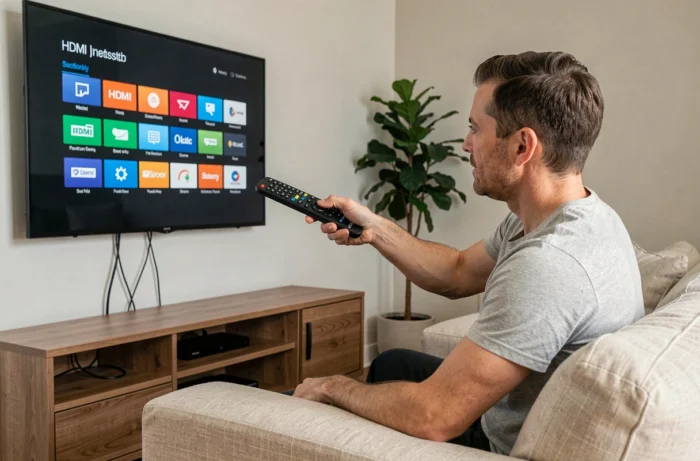
You connect a console or a decoder to your TCL television, press the power button, and the Google TV home screen appears. You then have to search for the remote, navigate through the menus, and select the correct HDMI input. This daily routine can become annoying, especially when multiple people are using the TV. The good news: on recent TCL models, a few settings are enough for the TV to start directly on your chosen HDMI port.
HDMI-CEC on TCL TV: the game-changing mechanism
Starting on an HDMI input does not work like a simple “default source selection.” On TCL Google TVs (C7L, C8L, RM7L series and similar models), it is the HDMI-CEC protocol that triggers the automatic switching. Specifically, when you turn on your box, console, or Blu-ray player, that device sends a CEC signal to the TV. If CEC is enabled, the TV wakes up and directly displays the corresponding HDMI input.
The term CEC stands for Consumer Electronics Control. It is a standard built into all recent HDMI cables. It allows your devices to communicate with each other: power on, power off, source switching, volume control. At TCL, this setting can be found in a specific menu that we will detail.
If you are looking to turn on the TCL TV on HDMI as soon as it is powered on, the key lies in the combination of two elements: CEC enabled on the TV side and an external device that sends the correct signal at startup.
HDMI CEC Settings on TCL Google TV Step by Step
Have you noticed that menu names change depending on the generations of TCL TVs? On Google TV models released since 2023, the access path is standardized. Here’s how to proceed.
Access External Input Settings
Press the settings button (gear) on your TCL remote. Go to the Channels and Inputs menu, then select External Inputs. You will find the HDMI (CEC) section there.
In this submenu, three options matter:
- HDMI-CEC Control: enable it. Without this option, no external device can communicate with the TV via the HDMI cable.
- Auto Power On: this feature allows the TV to turn on automatically when a connected HDMI device sends a startup signal.
- Auto Standby: when you turn off the external device, the TV goes into standby. Handy to avoid staying on a black screen.
Once these three options are enabled, turn off the TV. Wait a few seconds, then turn on your external device (box, console, player). The TV should wake up and display the corresponding HDMI input.
Check that the Last HDMI Source is Memorized
The startup behavior also depends on the source that was selected before going into standby. If the TV was on HDMI 1 before turning off, it will return to it upon waking via CEC. However, if someone switched to the Google TV home screen in the meantime, the TV will restart on that home screen.
The trick: before turning off the TV, make sure you are on the desired HDMI input. CEC will take care of the rest at the next power-up.
When CEC is Not Enough: Alternative Solutions for TCL
The CEC protocol does not work with all devices. Some older decoders or soundbars do not send a wake signal. In this case, the TCL TV will always start on the Google TV home screen, requiring manual selection of the HDMI input.
Use a TCL Remote Shortcut
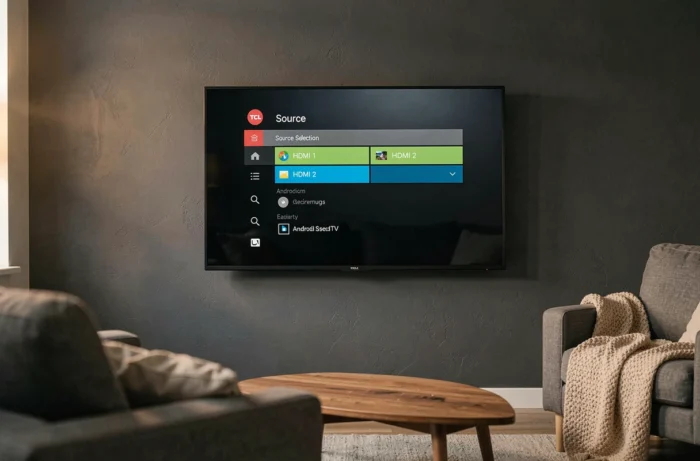
On most recent TCL remotes, a direct press on the “Input” or “Source” button displays the list of HDMI inputs. You can then select HDMI 1, 2, or 3 with just two button presses. It’s not an automatic startup, but it reduces the action to just a few seconds.
The AutoHDMI App to Force Switching
For the most stubborn cases (power cuts, complete TV restarts), a third-party app called AutoHDMI – Auto Switch to HDMI has been designed for Android TV and Google TV devices. It forces the switch to a chosen HDMI input after each restart, even without a CEC signal.
This solution is suitable for households where the TCL TV is plugged into a power strip with a switch, or in vacation rentals where users are unfamiliar with the TV menus.
HDMI Cable and Port: Two Details That Often Block Startup
You have enabled CEC, checked all options, and the TV still refuses to start on HDMI? The problem often lies with the physical hardware.
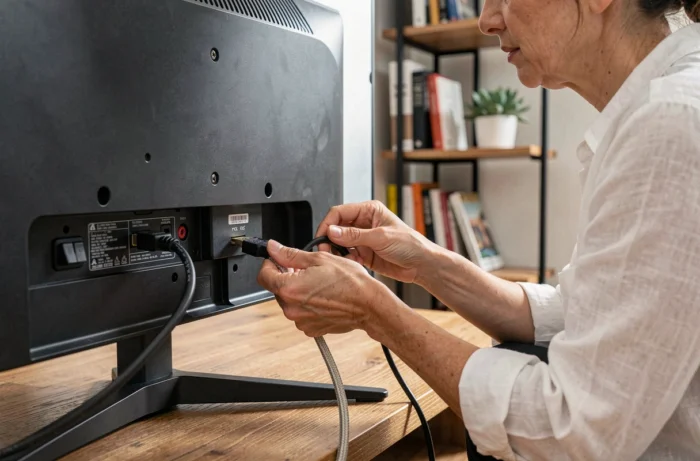
An old or low-quality HDMI cable may not transmit CEC signals. Not all HDMI cables handle CEC the same way, even though the standard theoretically allows it. Opt for a certified High Speed or Ultra High Speed HDMI cable.
The choice of port also matters. On some TCL models, HDMI port 1 is the one that handles CEC and ARC (Audio Return Channel) the best. If your device is plugged into HDMI 3, try moving it to HDMI 1 to test.
Last check: in the settings of your external device (box, console), ensure that CEC is also enabled. Communication must work both ways. On a PlayStation, the option is called “Enable HDMI Link.” On a Free or Orange box, look in the system settings for “HDMI-CEC” or “HDMI Control.”
Direct startup on HDMI remains a matter of dialogue between two devices. The TCL TV does not “choose” a default source: it reacts to the signal sent by the connected device. Activating CEC on both sides, using a reliable cable, and leaving the TV in standby on the correct HDMI input are the three conditions that make the operation seamless in daily use.